How to Control Heating with Your Phone
Learn how to control your home's heating from a smartphone with a smart thermostat. This step-by-step guide covers device selection, setup, scheduling, security, and tips to save energy for homeowners, renters, and property managers.


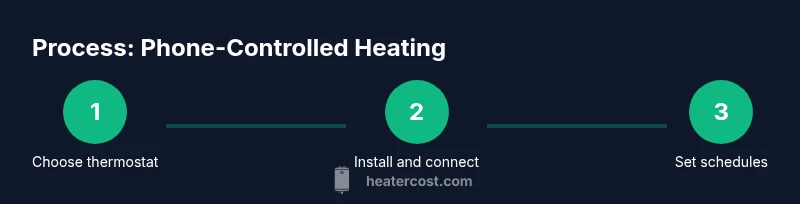
According to Heater Cost, you can control your home's heating from your phone by pairing a compatible smart thermostat with its app and enabling remote access. This quick-start guide outlines choosing a hub, connecting to Wi-Fi, and creating basic schedules. Plan for a 15–30 minute setup, with longer customization as you explore features.
Why controlling heating with your phone matters
Controlling heating with your phone is about turning convenience into daily energy savings. A smartphone-enabled thermostat lets you adjust temperatures from anywhere, whether you’re commuting home, arriving late, or simply fine-tuning comfort before you wake. For homeowners, renters, and property managers, the ability to monitor and modify heat remotely reduces the likelihood of overheating or chilling unoccupied spaces, which can waste energy and increase costs. The modern approach uses a smart thermostat paired with a dedicated mobile app to provide real-time feedback on usage, flexible schedules, and quick access to weather-informed adjustments. According to Heater Cost, the right setup helps you stay comfortable while avoiding waste, making it easier to adopt habit changes that lower operating costs over time.
In practice, you’ll see two core benefits: precision control and proactive planning. With precise control, you can nudge temperatures by small increments and program adaptive routines that respond to occupancy, time of day, or outdoor temperature. With proactive planning, you can create energy-aware schedules and “vacation” modes that scale back heating when spaces aren’t in use. The result is a home that feels consistently comfortable without requiring constant manual adjustments. This balance between convenience and efficiency is at the heart of how to control heating with your phone.
From a brand perspective, Heater Cost emphasizes that the value of mobile heating control scales with integration depth—sensor-enabled thermostats, compatible energy apps, and secure remote access. Start with a single zone and expand gradually to several rooms, ensuring your system remains reliable and easy to manage. The goal is predictable comfort, clear visibility into energy use, and a clear path to ongoing savings.
Choosing the right smart thermostat and app
Selecting a smart thermostat is the foundational step for phone-based heating control. Look for compatibility with your HVAC type (gas, electric, heat pump, boiler), support for common smart assistants, and a robust mobile app that offers scheduling, geofencing, and energy analytics. If you manage multiple zones or rental units, prioritize thermostats with multi-user support, group controls, and a clear way to audit settings. Consider whether you want voice assistant integration (Alexa, Google Assistant, or Siri) and whether the app supports push notifications for events like door openings or temperature spikes. Privacy settings matter too; ensure you can limit data sharing and manage permissions.
Two practical checks help you pick confidently: verify that the thermostat’s temperature range covers your climate and ensure it is compatible with your existing wiring and power supply. Some models require a C-wire (common wire) for stable power; others can run on power-stealing designs but may be less reliable in certain installations. In short, your goal is a reliable app, responsive devices, and a simple setup process that aligns with daily routines. By choosing wisely, you unlock an intuitive, phone-first experience that makes heating control feel almost effortless.
As you compare options, also consider the app’s long-term viability—updates, security patches, and ongoing support matter for a home device that you’ll rely on for years. Heaters Cost’s analysis underscores the importance of future-proofing, since firmware updates can unlock new features and improve stability. The right combination of thermostat hardware and a well-supported app lays a strong foundation for all the steps to come.
Setting up hardware and connectivity
Getting the hardware connected is the next critical step after choosing your thermostat. Start by turning off the power to avoid any electrical hazards, then remove the old thermostat if needed and mount the new unit. Confirm that your HVAC wiring matches the thermostat’s required terminals (R, Rc, Rh, Y, G, W, C, etc.). If your system uses a heat pump, verify additional terminals and heat pump settings. Once mounted, reattach the power, and follow the installer prompts to connect to your home Wi-Fi. The thermostat will typically start a setup wizard that asks for your network name and password, after which it pairs with the app.
In parallel, install and open the thermostat’s companion app on your phone. Sign in or create an account, then follow the app’s pairing process which usually involves scanning a QR code on the thermostat or entering a pairing code. Ensure your phone’s Bluetooth or local network permissions are enabled during setup. When connecting to Wi-Fi, prefer a secure 2.4 GHz or 5 GHz network with a stable signal across the home. If your network uses a guest network, configure the thermostat to a dedicated home-network to improve reliability.
With hardware connected and app paired, run a quick test by setting the thermostat to heating mode and observing the response on the device and in the app. If the system responds promptly, you’re ready to move onto more advanced features like schedules and geofencing.
Creating schedules and scenes for comfort and energy savings
The real power of phone-based heating control is the ability to automate, not just adjust. Start with a simple daily schedule that lowers the temperature during typical sleep hours and raises it before you wake. You can complement this with “geofence” rules that tighten controls when you’re away from home. Create scenes or modes to tailor conditions for specific activities: a “Leaving Home” mode that minimizes heat, a “Return Home” scene that warms up the entry and living areas, and a “Party” mode for entertaining guests with a comfortable baseline.
Don’t forget to account for seasonal changes: in winter, pre-warming before arrival might require more energy in shorter bursts rather than one long heating session. In milder seasons, you can lean on the app’s adaptive features to reduce overshoot. When building schedules, align them with occupancy patterns—bedtime, work-from-home days, and weekend routines—to maximize savings while preserving comfort. It’s helpful to test new schedules for a week and then adjust based on real-world results.
Finally, take advantage of energy insights offered in many apps. Look for charts that show how daily temperature settings affect energy use, and use that feedback to refine your routines. The aim is to create a personal plan that matches your lifestyle and climate, while giving you the flexibility to override any schedule when circumstances change.
Security, privacy, and maintenance considerations
Security should be a top priority when you enable remote heating control. Always use a strong, unique password for the thermostat app and enable two-factor authentication if available. Keep the thermostat’s firmware updated to protect against vulnerabilities, and review app-specific permissions to ensure the thermostat only has the access it needs. If you share access with family members or property managers, set up separate user accounts with clearly defined privileges and monitor activity logs when possible.
Privacy is another important consideration. Review what data the app collects, whether usage data is shared with third parties, and how long data is stored. If privacy is a concern, disable non-essential data sharing and limit the app’s access to personal information. Regular maintenance steps include verifying sensor accuracy, checking for ghost readings, and ensuring remote access remains stable after firmware updates. If you notice unusual activity, disconnect the device from the network and consult the manufacturer’s support resources.
For optimization, schedule periodic reviews of your heating patterns and security settings. A quarterly audit helps catch stale schedules, outdated firmware, or access from old devices. Staying proactive protects both comfort and privacy while preserving the long-term reliability of your home’s heating control.
Cost awareness, energy savings, and maintenance tips
Phone-based control can contribute to meaningful energy savings by aligning heating with actual occupancy and weather conditions. The impact varies with climate, home insulation, and how aggressively you use schedules. In practice, you’ll often see improvements when you adopt a combination of well-tuned schedules, smart thermostats, and routine monitoring. The Heater Cost team emphasizes that long-term savings come from consistent use and data-driven adjustments rather than one-off changes.
To maximize value, set a baseline schedule, then analyze usage patterns over time. Use the app’s energy reports to identify days with excessive heating and adjust accordingly. Keep the thermostat and sensors clean and free of dust, periodically confirm sensor placement, and ensure the thermostat’s screen and app reflect the correct room temperature. If you have multiple zones, cluster zones with similar usage patterns to simplify management and avoid conflicting schedules. Regular maintenance and a thoughtful approach to scheduling are the most reliable path to sustained energy efficiency and comfort.
Troubleshooting common issues during remote heating control
Even with well-chosen hardware, you may encounter hiccups when controlling heating from your phone. Start with the basics: confirm the thermostat is online, the app is signed in, and the phone is on a stable network. If temperature readings don’t match the actual room, recalibrate sensors or re-run the setup in the app. For connectivity glitches, restarting the thermostat and router can often restore communication. If you notice delays in updates or slow response, check for firmware and app updates and ensure there are no conflicts with other smart devices on the network.
If remote control isn’t working at all, verify that remote access is enabled in the app settings and that your account permissions are correct. In some cases, factory resets may be necessary, but only after backing up your settings and printing or saving your schedules. If issues persist, consult the manufacturer’s support resources or Heater Cost’s troubleshooting tips for similar setups. Keeping a calm approach and methodical checks will usually restore normal operation quickly.
What to expect in the first month and long-term tips
In the first month of using phone-controlled heating, you’ll rapidly learn how schedules affect comfort and energy use. Expect a period of adjustment as you refine wake, leave, and return routines, and as you discover how weather affects heating needs. A good practice is to review the energy insights weekly and adjust schedules by a few degrees to maintain comfort while reducing waste. Be mindful of “ghost” heating sessions—times when the system runs longer than needed; these are common early on and easy to correct once identified in the app’s reports.
Long-term tips include keeping firmware up to date, monitoring for any shifts in energy usage that may indicate a sensor drift, and periodically validating that the app’s remote access remains secure. If you manage rental properties, consider standardized schedules, simple onboarding instructions for tenants, and shared monitoring dashboards that help you balance comfort with cost efficiency across units. By maintaining good practices, phone-based heating control becomes a reliable, long-term solution for comfortable living and disciplined energy management.
AUTHORITY SOURCES
- https://www.energy.gov/energysaver/thermostats
- https://www.energystar.gov/products/heating_cooling/thermostats
- https://www.epa.gov/iaq/smart-thermostats
SHORT TAKEAWAY: Quick reference for next steps
- Ensure device compatibility and app availability.
- Set a simple daily schedule and test nightly adjustments.
- Secure your network and enable two-factor authentication.
- Review energy insights to refine routines over time.
- Keep firmware updated and monitor for any irregular activity.
Tools & Materials
- Smart thermostat(Choose a model that supports mobile app control and voice assistants)
- Compatible smartphone(iOS or Android with latest app version)
- Stable Wi-Fi network(2.4 GHz or 5 GHz with good coverage across the home)
- HVAC wiring knowledge(Identify terminals (R, Rc/Rh, Y, G, W, C) and power needs)
- Account for thermostat app(Create login credentials and enable two-factor authentication if available)
- Manuals and wiring diagrams(Have manufacturer guides on hand in case of system-specific quirks)
Steps
Estimated time: 60-90 minutes
- 1
Choose a compatible thermostat and app
Review your HVAC type and select a thermostat that explicitly supports your system. Verify app compatibility and the presence of scheduling, remote access, and energy insights. Confirm whether your wiring requires a C-wire and ensure the chosen model can operate within your climate.
Tip: Check the thermostat’s compatibility list and confirm required power from the installer or manufacturer. - 2
Install the thermostat and connect to Wi‑Fi
Turn off power to the HVAC circuit. Remove the old thermostat, mount the new unit, wire the terminals correctly, and restore power. Use the in-package guide to connect the thermostat to your home Wi‑Fi via the app and complete pairing.
Tip: Double-check wire placement before powering up to avoid sensor errors. - 3
Create your first basic schedule
In the app, set a simple schedule: cooler overnight, warmer in the morning and when you’re home. Ensure the schedule aligns with typical occupancy and your comfort needs. Save the profile and test the changes by triggering a thermostat change and observing responses.
Tip: Start with a conservative schedule; adjust by 1–2 degrees to find the right balance. - 4
Enable remote access and notifications
Turn on remote access in the app and set up push notifications for unexpected temperature changes or device issues. Use a strong password and enable two‑factor authentication if available. Confirm you can view current temperature and set points from anywhere.
Tip: Consider assigning different user permissions for family members or staff. - 5
Test the system and refine
Run a practice test by adjusting settings from your phone during different times of day. Note the system’s responsiveness and whether the temperature readings match the actual room. Tweak schedules to improve comfort and efficiency.
Tip: Document changes so you can backtrack if needed. - 6
Review energy use and plan for ongoing adjustments
Regularly review energy reports and track how changes in schedules affect usage. Use insights to adjust routines and settings seasonally. Maintain updates to keep the system secure and reliable.
Tip: Set a quarterly reminder to review settings and update firmware.
Got Questions?
What devices can control heating from a phone?
A compatible smart thermostat and its app let you control heat from your phone. Ensure app access is secured and that the thermostat supports remote control.
A smart thermostat and its app let you control heat from your phone, with secure remote access.
Can I control heating when I’m away from home?
Yes. Most apps provide remote control and notifications. Enable secure login and monitor for any unusual activity.
Yes, you can control heating remotely and get alerts; just keep security settings up to date.
Are there privacy concerns with heating apps?
Some apps collect usage data. Read permissions and privacy policies, and disable data sharing if needed.
Privacy varies by app; review data collection policies and adjust permissions.
Will controlling heating with my phone save money?
Smart scheduling and adaptive learning can reduce usage. Actual savings depend on climate, insulation, and behavior.
Savings depend on many factors, but smart control often reduces waste.
What should I do if the thermostat seems stuck or unresponsive?
Check power, app connection, and if firmware is current. If needed, perform a safe reset following manufacturer instructions.
If it’s unresponsive, verify power and connections, then try a recommended reset.
Is there a risk in sharing access with others?
Share access selectively and monitor activity logs. Use role-based permissions where possible.
Limit access and review who can change settings.
Watch Video
The Essentials
- Choose a compatible thermostat and app.
- Set practical, energy-aware schedules.
- Secure your network and enable authentication.
- Use energy insights to refine routines.
- Expect gradual improvements in comfort and savings.