How to Control Heating with Nest: A Step-by-Step Guide
Learn how to control your home heating with the Nest thermostat—from compatibility and installation to scheduling, energy-saving tips, and troubleshooting.


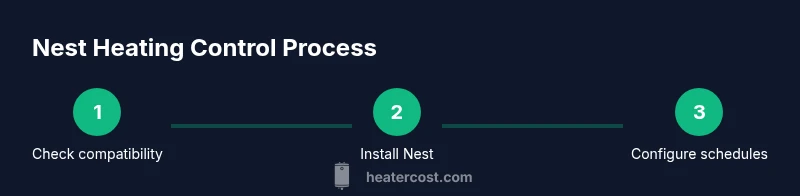
This guide helps you control heating with Nest by installing a compatible thermostat, connecting to Wi‑Fi, and using the app to adjust temperature, schedules, and modes. According to Heater Cost, a correct setup reduces false readings, avoids wasted energy, and leverages Nest learning features for ongoing comfort and cost savings.
Nest and the basics of heating control
Nest thermostats offer precise control of central heating by connecting to your home's heating system through a simple base, wires, and a companion app. With a Nest, you can set schedules, create away modes, and tap into learning features that adjust temperatures automatically. According to Heater Cost, starting with a proper installation and a well-planned schedule is key to reliable performance and energy savings. This guide walks you through compatibility, setup, features, and practical tweaks to get the most from Nest in real homes.
Is Nest Compatible With Your Heating System?
Nest works with many common heating configurations, including boilers, furnaces, and heat pumps. It supports traditional single‑stage and multi‑stage setups, as well as radiant floor heating when wired correctly. Some electric baseboard systems or older zones may require additional adapters or a different thermostat solution. Before buying, run the official compatibility check and read your system’s wiring diagram to confirm you can safely install a Nest thermostat. If you’re unsure, consult a professional to avoid miswiring or compatibility issues that could impact comfort and safety.
Getting Started: Installation and Setup
Begin by powering off the heating circuit and removing the old thermostat. Label each wire, take a clear photo, and verify there is a C wire for constant power, or plan to add a Nest power connector if your system lacks one. Mount the Nest base plate on the wall, insert the wires into the labeled terminals, and attach the thermostat face. Restore power and follow the on‑screen prompts in the Nest app to connect to Wi‑Fi and create your account. The app will guide you through selecting your heating type and linking to your home network. If you run into a weak Wi‑Fi signal, consider relocating your router or using a range extender to ensure reliable remote control.
Core Nest Features for Heating Control
With Nest, you can build a weekly schedule, enable Home/Away Assist, and use Eco mode to reduce energy use when you’re not home. The learning feature observes your routine and gradually adjusts temperatures, so you don’t have to micro‑manage every hour. Regularly review the suggested schedules in the app, and adjust them to match real comfort needs. Keep in mind that Wi‑Fi status and firmware updates influence reliability, so check for updates after installation and periodically thereafter. For those balancing comfort with savings, Eco mode and precise scheduling often yield meaningful reductions in energy use over time.
Controlling Different Heating Scenarios
If you have a boiler or heat pump, Nest can manage heating with or without a separate zone controller. For radiant floor systems, ensure the thermostat supports the required output and set the correct floor heating mode. When you have multiple zones, you may need a separate thermostat for each zone or a compatible zoning system; Nest can be integrated with some multi‑zone setups but may not control every zone independently. Always consult your equipment manuals and plan your thermostat placement to minimize sensor interference and ensure accurate temperature readings.
Energy-Saving Strategies and Practical Tweaks
Use a modest temperature setback during unoccupied hours and align your schedule with your daily routine. Enable Eco mode when you’re away or sleeping, and use Home/Away to adjust when you’re away from home. Tie Nest to your local weather and outdoor sensors if supported, so the system preheats or cools in advance when outdoor temperatures shift. Remember that every degree matters for energy costs, so start with a conservative setpoint and adjust gradually. Pair Nest with proper insulation and sealing to maximize the impact of your heating control.
Troubleshooting Common Issues
If Nest doesn’t power on, check that your wiring is secure and there is a constant supply to the thermostat. If the app won’t connect, verify your Wi‑Fi network and ensure the Nest is linked to the correct account. Misread room temperature can occur if sensors are blocked or placed in direct sun; relocate sensors away from heat sources. If you experience erratic heating, review your schedule, check that your heating system supports the Nest, or contact a professional. For stubborn problems, reset the device following the official instructions and re‑pair with your Nest account.
Authoritative Sources
- U.S. Department of Energy: Thermostats and energy savings tips (energy.gov)
- Energy Star: Thermostats product page (energystar.gov)
- NIST: Thermostats energy data and best practices (nist.gov)
Tools & Materials
- Nest thermostat(Model with compatibility for your heating system)
- C-wire or power connector (if needed)(Needed if system lacks a common wire)
- Screwdriver set(Phillips #2 for thermostat base plate)
- Non-contact voltage tester(Useful for confirming power while wiring)
- Stable Wi‑Fi network(2.4 GHz often provides best range)
- Smartphone or tablet(To run the Nest app and configure)
- Electrical wiring diagram for your system(Helpful for labeling wires)
Steps
Estimated time: 45-75 minutes
- 1
Power down and prep
Turn off power to the heating system and the old thermostat circuit. Remove the old device and take a careful photo of the wiring. Verify you have access to a C wire or plan for a power connector.
Tip: Label wires clearly and double-check circuit breakers before touching wires. - 2
Label and verify wires
Label each wire by terminal and compare with the Nest compatibility guide. If a wire is unclear, defer to a professional rather than risking a miswire.
Tip: A labeled wiring photo helps during the mounting process. - 3
Mount Nest base
Attach the Nest mounting plate to the wall and ensure it’s level. Feed wires through the plate, then insert them into their corresponding Nest terminals.
Tip: Only secure screws until the plate is snug to avoid wobble. - 4
Connect wires to Nest
Insert wires into the labeled terminals on the Nest base. Remove any old adapters unless specifically required by your system. Ensure no loose strands exist.
Tip: Double-check the C wire connection if your system uses one. - 5
Power up and configure
Restore power and follow the on-screen prompts in the Nest app to connect to Wi‑Fi. Select your heating type and confirm wiring is detected correctly.
Tip: Perform a test call for heat to confirm the thermostat activates the boiler or heat pump. - 6
Set schedules and verify
Create your initial weekly schedule and enable Home/Away. Review zone behavior and make incremental adjustments to reach comfort without overspending.
Tip: Start with conservative temperatures and adjust after a day or two.
Got Questions?
Is my heating system compatible with Nest?
Nest works with many boilers, furnaces, and heat pumps, but some systems may require adapters or professional installation. Use the official compatibility checker to confirm before buying.
Nest compatibility varies by system. Check the official compatibility tool and consult a professional if in doubt.
Do I need a C-wire for Nest?
Many homes have a C-wire for constant power, which Nest needs to operate reliably. If you don’t have one, you may need a power connector or professional wiring.
Most Nest setups benefit from a C-wire. If you’re unsure, have an HVAC pro verify wiring.
Can Nest control a boiler system?
Yes, Nest can control boilers that power central heating, but ensure the boiler’s wiring and control circuits are compatible with Nest terminals.
Nest can manage many boiler systems; verify wiring and compatibility first.
How do I set up schedules on Nest?
Open the Nest app, go to Schedules, and create a weekly plan. You can copy days, adjust temperatures, and enable Home/Away for automatic changes.
In the app, you can easily set up weekly schedules and enable Home/Away.
Will Nest save money on heating costs?
Using Nest with well-designed schedules and Eco mode can reduce wasted energy, leading to lower heating costs. Actual savings depend on your home, occupancy, and climate.
Nest helps reduce energy use with schedules and Eco mode, potentially lowering costs.
What if Nest stops responding to commands?
Check Wi‑Fi, sign in to the Nest app, verify the thermostat is online, and ensure firmware is up to date. If problems persist, reset the device and re-connect.
If Nest isn’t responding, check Wi‑Fi, update firmware, and re-connect. Reset if needed.
Watch Video
The Essentials
- Install Nest correctly and connect to Wi‑Fi.
- Create schedules that reflect your daily routine.
- Use Eco mode and learning features for ongoing savings.
- Regularly update firmware for reliability.
- Test your system after installation to confirm heating control works.